
Course Software#
Microsoft 365#
As a Purdue student, you have free access to the Microsoft 365 suite, which includes essential desktop applications like Excel, Word, and PowerPoint. Because we will rely heavily on Excel for data analysis during the first four weeks of the course, you will want to install the desktop versions of these apps on your local machine.
How to Install Microsoft 365#
Visit the Purdue Office 365 portal.
Sign in with your Purdue email address and password.
Click the Install button on the top right of the page.
Follow the downloaded installer’s prompts to complete the setup on your computer.
Python#
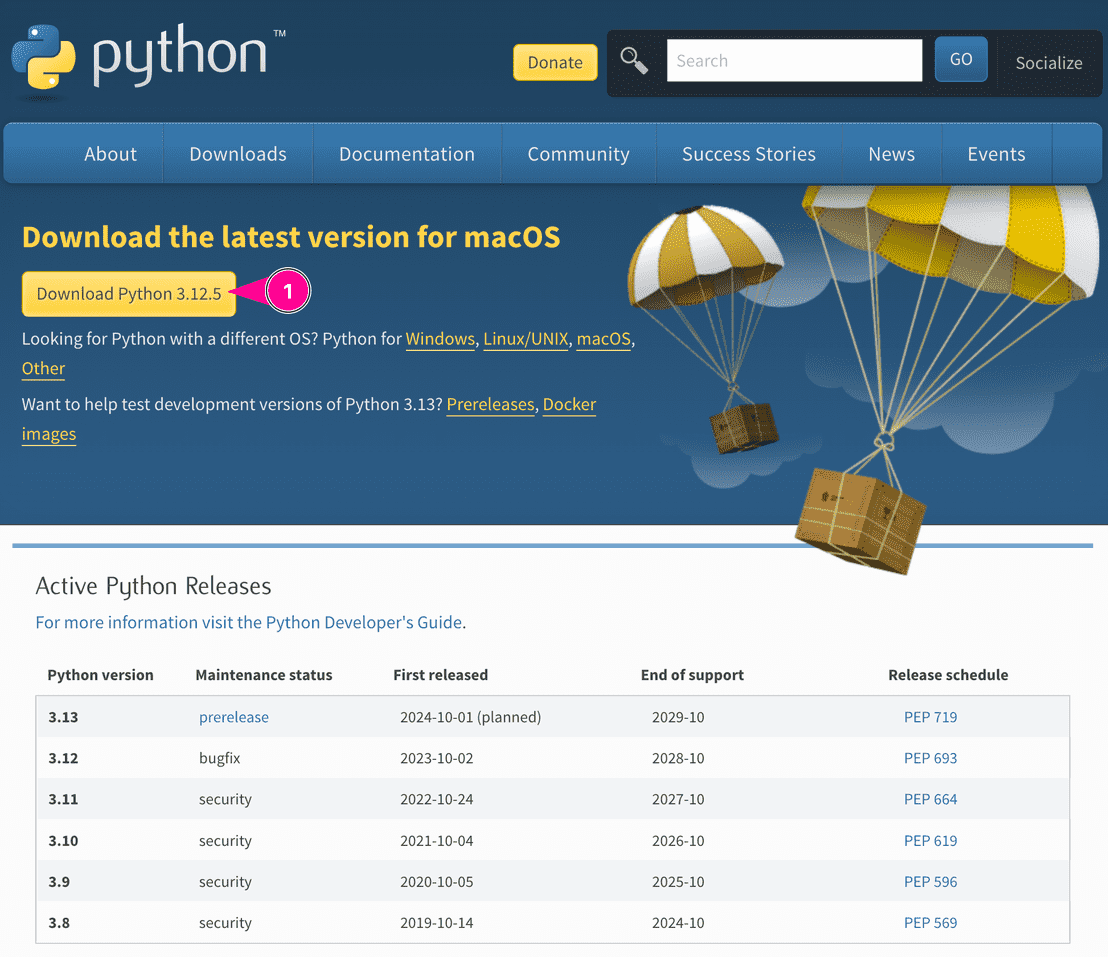
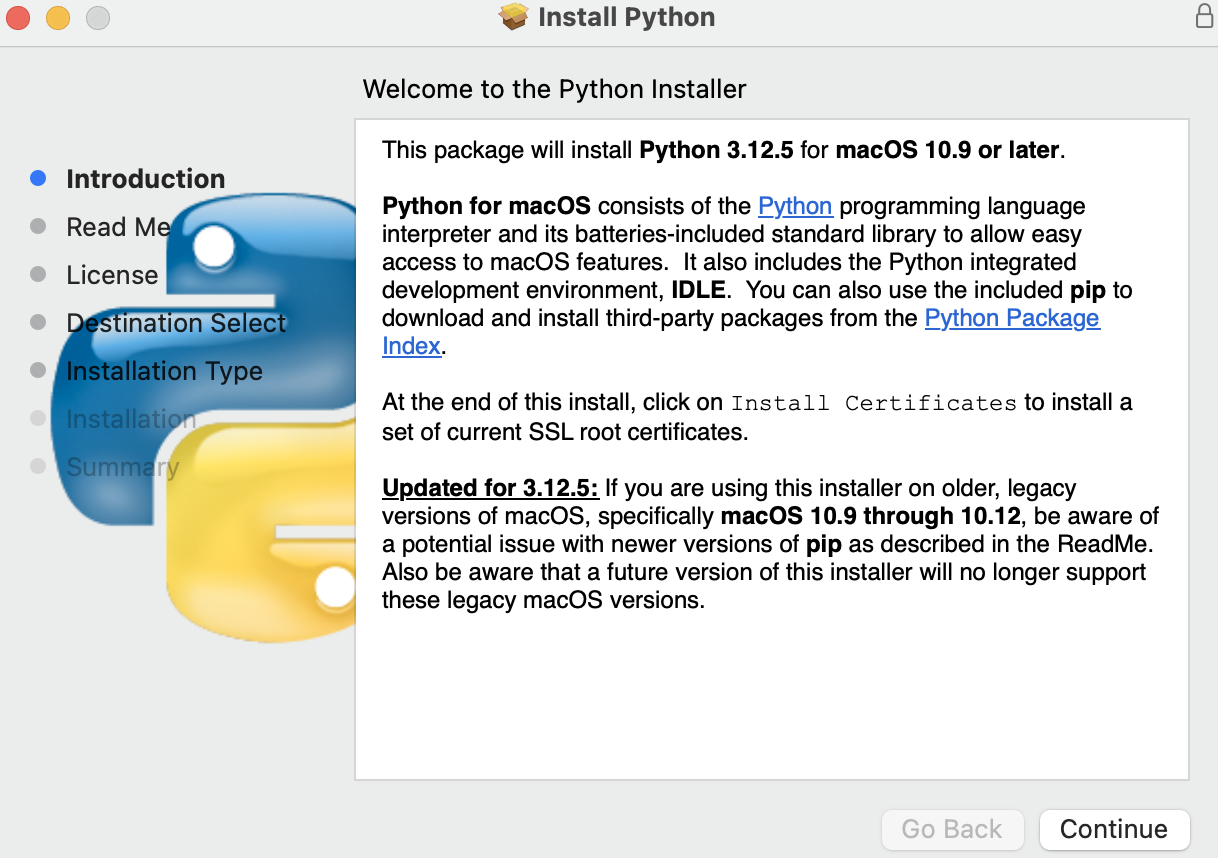
Follow the steps below to install Python on your system.
Open the Microsoft store
Search for Python 3.13
Click on “Get” to install the Python 3.13 interpreter
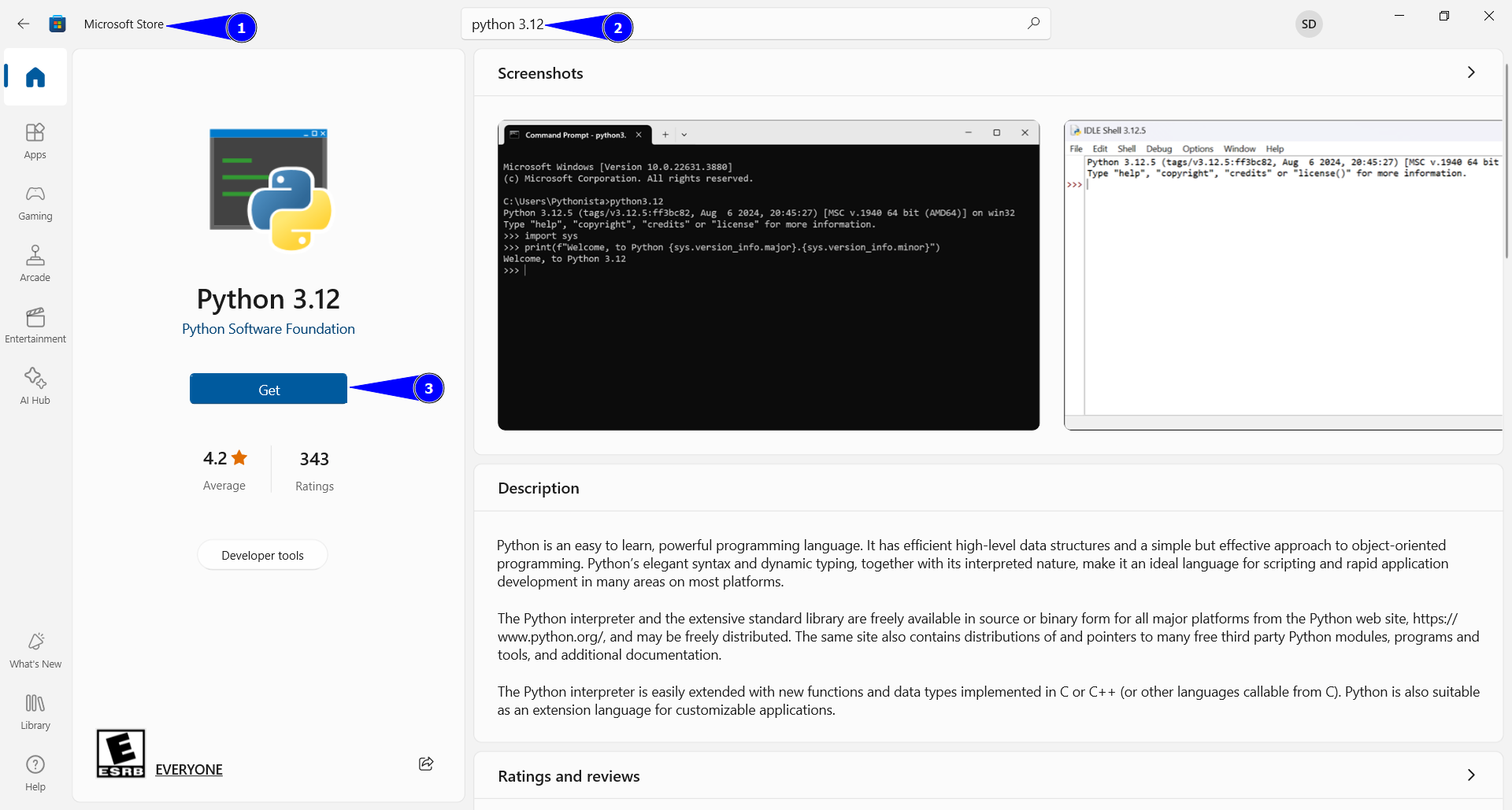
Fig. 6 A representation of Python Installation page on Windows Store.#

VS Code#
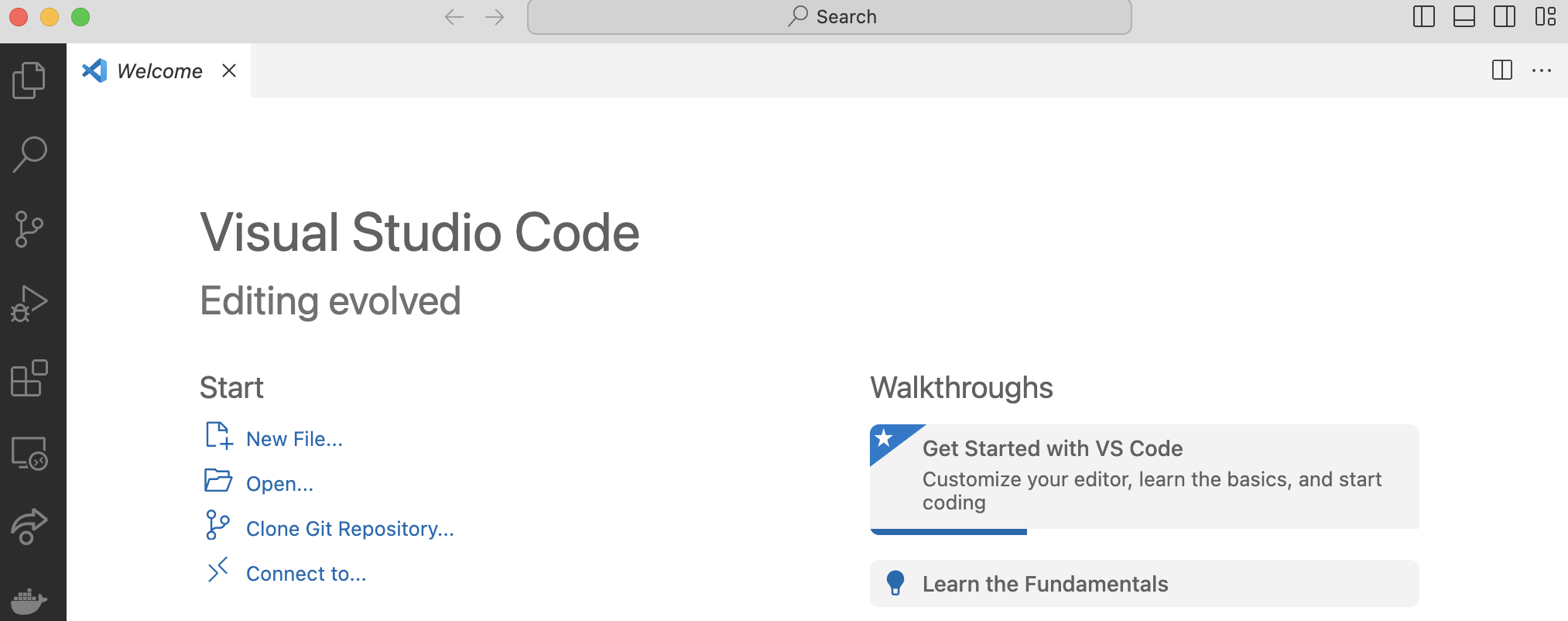
Fig. 10 A representation of VS Code Interface.#
Installing VS Code#
Download VS Code from https://code.visualstudio.com/download and choose your OS (Windows, Mac, or Linux).
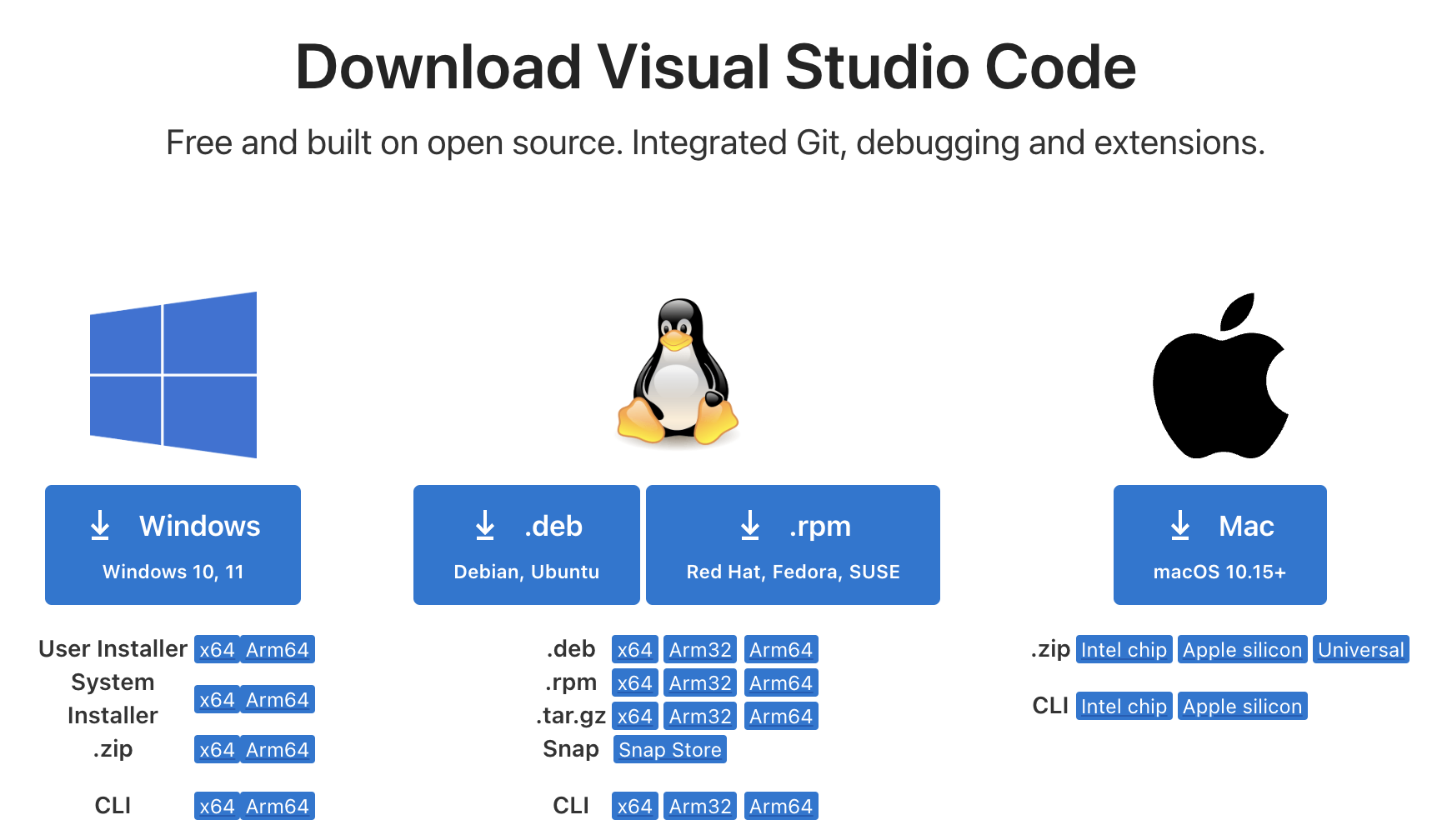
Fig. 11 A representation of VS Code Installation page.#
Important
Make sure you are installing Visual Studio Code, NOT Visual Studio.
Installing Python Extension#
Python extension in VS Code is useful because it enhances code development with features like syntax highlight, smart code suggestions, integrated debugging, and linting to catch errors early. It also supports virtual environments and Jupyter Notebooks, making it a comprehensive tool for Python programming.
Open VS Code and go to the extensions tab on the left side of the screen.
Search for “Python”
Install the official Python extension.
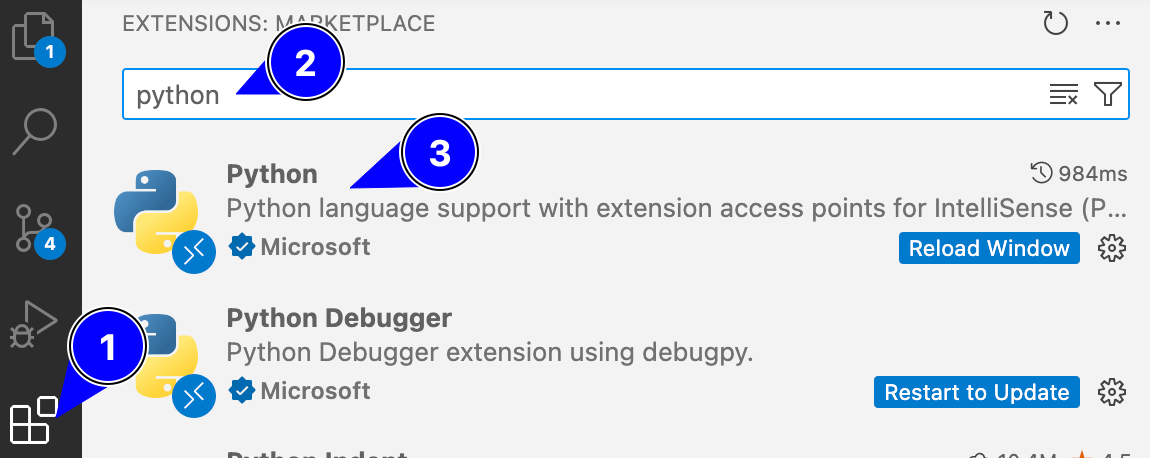
Fig. 12 A representation of Python Extension Installation steps on VS Code.#